

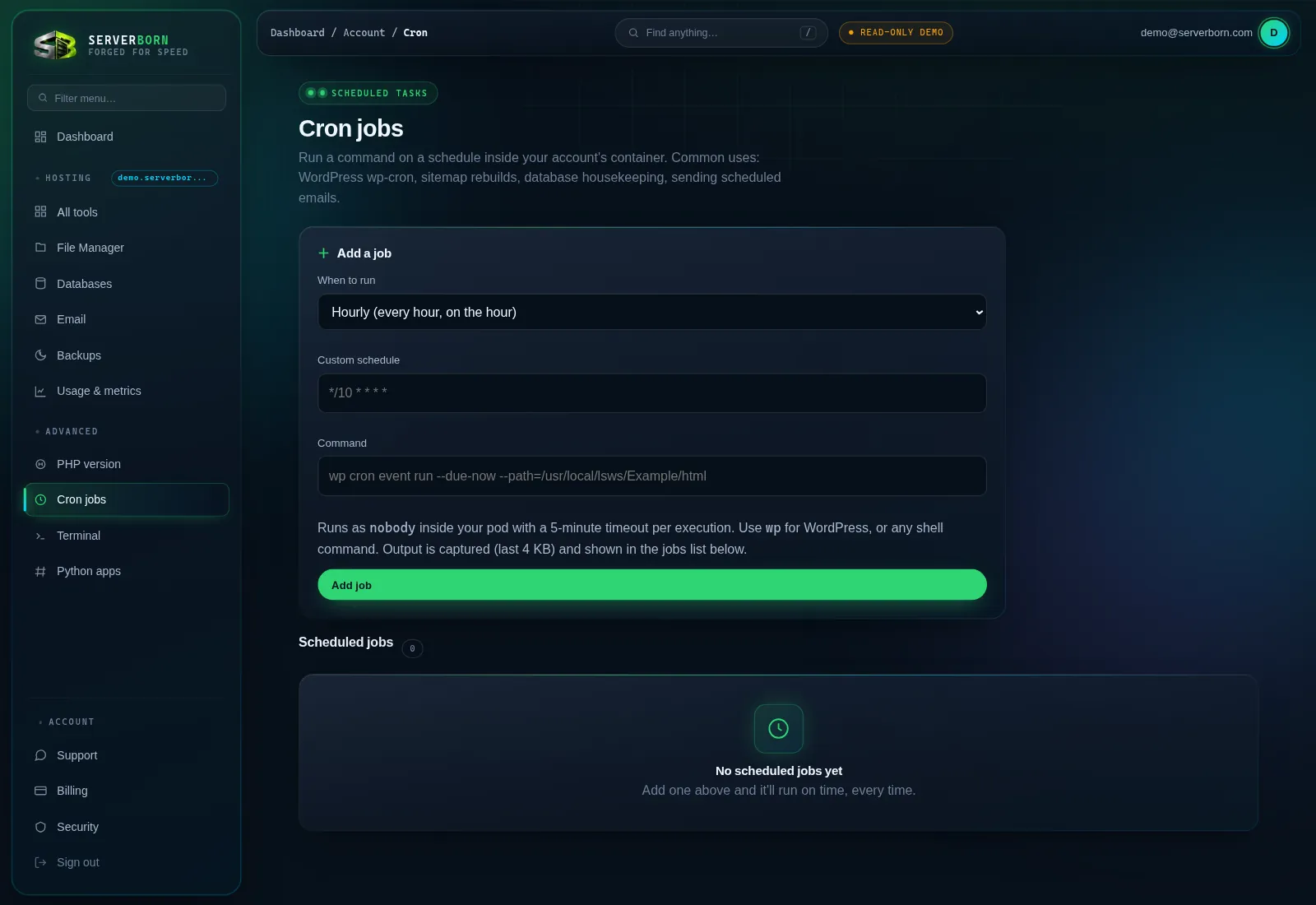
Add a job
- Open Cron jobs
Sidebar → Advanced → Cron jobs, or
/then “cron”. - Pick when to run
Choose a preset: every 5/15/30 minutes, hourly, daily 3 AM, weekly, monthly, or pick Custom to unlock the 5-field cron box (e.g.
*/10 * * * *= every 10 minutes). - Enter the command
Any shell command, run inside your own container. WordPress example:
wp cron event run --due-now --path=/usr/local/lsws/Example/html. - Click Add job
It appears in the list below with its schedule, status and history.
Reading the job list
- The schedule chip shows the effective cron expression.
- enabled / paused badge: pause a job without deleting it (the Pause button toggles).
- Last run + exit code: ok means exit 0; anything else shows the code.
- Last output: expand it to see the last 4 KB your command printed. This is your debugging window.
Jobs run as an unprivileged user inside your pod with a 5-minute timeout per execution, so a hung script can't wedge your schedule.
The classic use: real WordPress cron
WordPress fires its scheduler on visitor page-loads, which is unreliable on quiet sites: posts publish late, backups skip. The fix: add the wp cron event run --due-now command above on the Every 5 minutes preset, then add define('DISABLE_WP_CRON', true); to wp-config.php via the file manager. Scheduled posts now go out on the second.
What's the 5-field syntax?
minute hour day-of-month month day-of-week. 0 3 * * 0 = Sundays at 03:00. */10 * * * * = every 10 minutes. The Custom field validates as you type.
Why did my job “fail” with an exit code?
That's your command's own exit status. Expand Last output: the error message is nearly always right there.