

How ServerBorn backups work
Every night we snapshot everything on your plan: every website's files and every database, and keep the last seven days. You don't configure anything; it's already running. The Backups light on your dashboard shows the latest snapshot date.
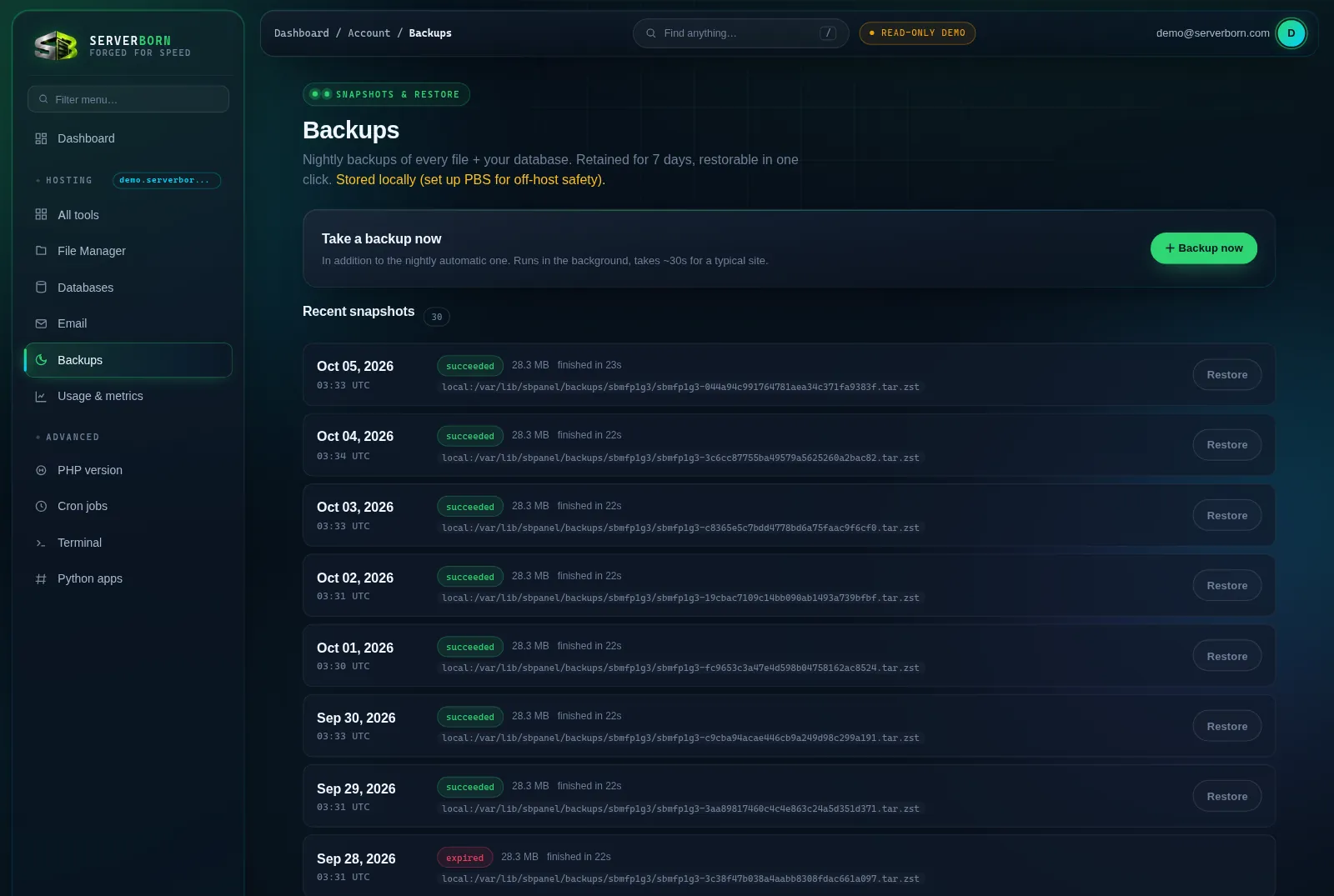
Take a backup right now
- Open Backups
Sidebar → Backups, or
/then “back”. - Click + Backup now
Runs in the background: about 30 seconds for a typical site. It appears at the top of the list when done, with its size and duration.
Make “Backup now” a reflex before anything risky: plugin updates, theme surgery, bulk deletes, database experiments. It costs 30 seconds and makes every mistake reversible.
Open a backup in staging
Need something from an old version, or want to see how the site looked last week? Open in staging next to a backup makes a private staging copy of one website exactly as it was in that backup. Your live site is not touched, and you can copy what you need or push the old version to live from the Staging page.
- Choose the backup
On the Backups page, pick the date. With more than one website, choose which one from the list next to the button.
- Press Open in staging
The copy is ready in a few minutes at its own private address, hidden from search engines.
- Look around
Open the copy from the Staging page. When you are done, delete it, or push it to live with the usual one-click undo.
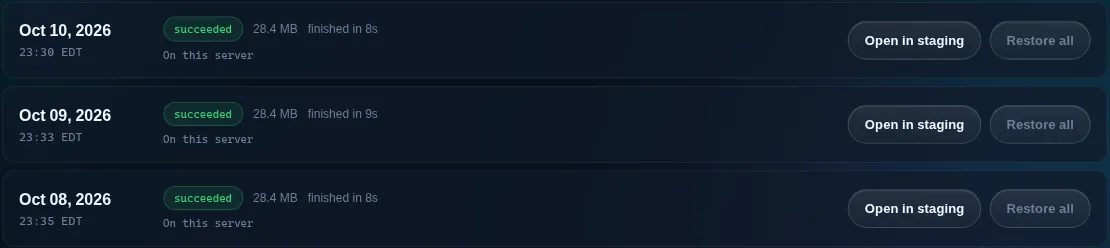
Each website can have one staging copy at a time. If it already has one, delete it on the Staging page first.
Restore a snapshot
- Find the snapshot in the list
Each row shows date, time, status and size. Only succeeded snapshots offer Restore all.
- Click Restore all and read the confirmation
A restore replaces the current files and databases of every website on the account with the snapshot's contents. Anything created after that snapshot is lost.
- Confirm and wait
Runs in the background; a typical site is back in under a minute. Purge cache afterwards if pages look stale.
Restoring cannot be undone. If today's state might matter, click + Backup now first, then restore the older snapshot: now both points in time exist.
What exactly is inside a snapshot?
All files of every website on the plan, plus full dumps of every database. Email routing rules and DNS live outside the pod and aren't affected by restores.
Can I restore a single file or one website instead of everything?
Use Open in staging: it brings back one website as it was in the backup, without touching the live site. Copy the file you need from the staging copy with the File Manager, or push the whole website to live from the Staging page.
Can I download a backup?
Open a ticket and we'll hand you an archive. Scheduled off-panel exports are on the roadmap.