

How it works
Email routing receives mail for addresses on your hosting domain at the network edge and forwards it to a mailbox you already have (Gmail, Outlook, anything). There's no webmail to babysit and nothing to configure at your registrar: the MX records are managed for you.
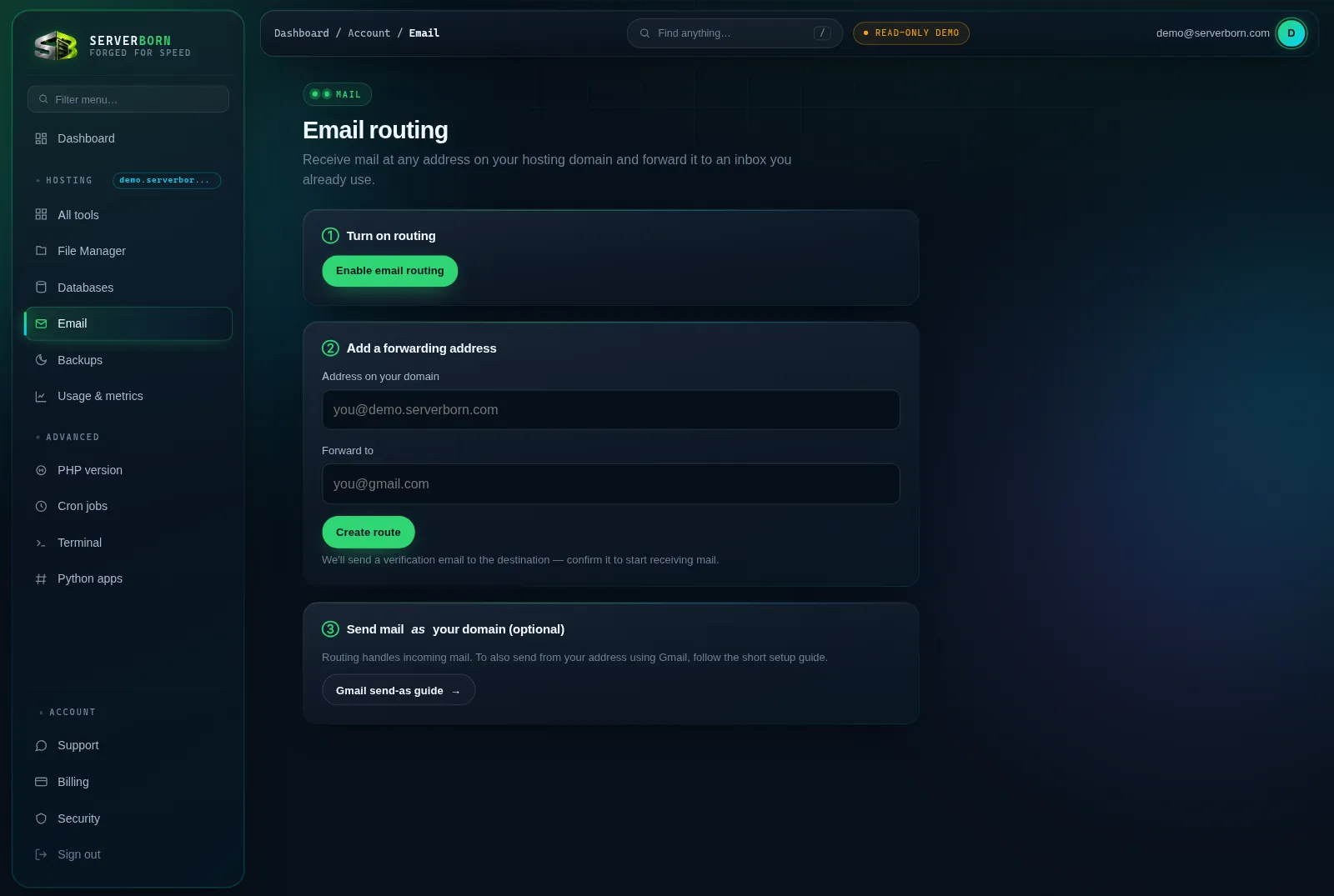
Set up forwarding
- Open Email
Sidebar → Email under Hosting, or
/then “email”. - Click Enable email routing
One click; it provisions the MX records and routing engine. Only needed once per domain.
- Add a forwarding address
In “Address on your domain” type the address to create, like
hello@yourdomain.com. In “Forward to”, the inbox that should receive it. Click Create route. - Confirm the verification email
The destination inbox gets a confirmation message: click its link once and mail starts flowing.
Create as many routes as you like (hello@, billing@, press@), all landing in one inbox, so you look like a company and manage like a person.
Send AS your domain from Gmail
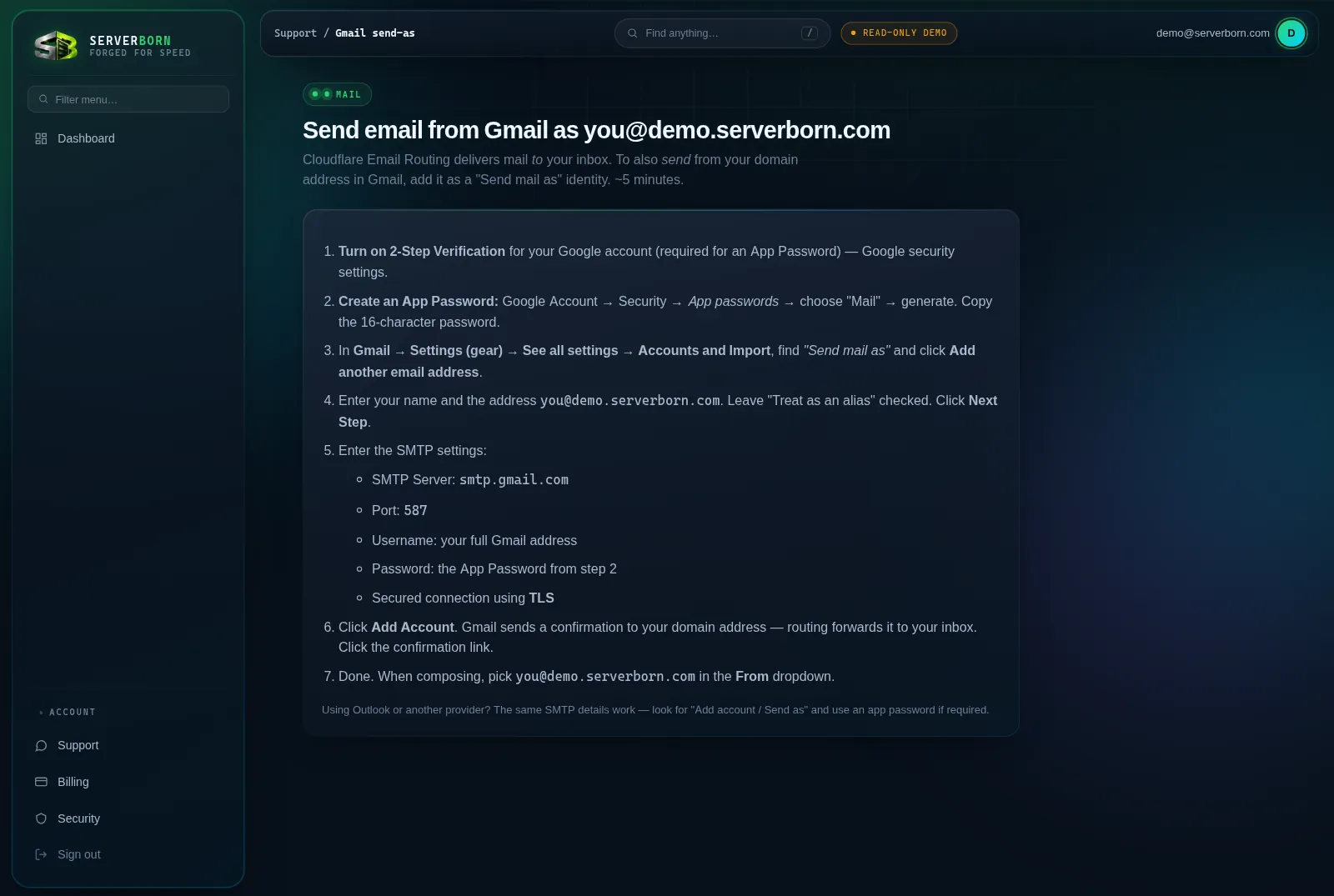
Routing handles incoming mail. To also reply from hello@yourdomain.com inside Gmail, add it as a “Send mail as” identity: the panel has a built-in walkthrough.
- Open the guide
On the Email page click Gmail send-as guide →.
- Create a Google App Password
Google Account → Security → 2-Step Verification (required) → App passwords → Mail. Copy the 16-character password.
- Add the identity in Gmail
Gmail → Settings → Accounts and Import → “Send mail as” → Add another email address. Enter your domain address; keep “Treat as an alias” checked.
- Enter the SMTP details
Server
smtp.gmail.com, port587, username = your full Gmail address, password = the App Password, TLS on. - Click the confirmation link
Gmail mails your domain address; routing forwards it to you; click it. Now pick your domain in the From dropdown whenever you compose.
Is this a full mailbox with storage?
No: it's forwarding, which covers most sites with zero maintenance. Need real mailboxes (IMAP, shared storage)? Open a ticket and we'll recommend a setup that pairs cleanly.
Can I forward one address to several people?
Create multiple routes with the same “Address on your domain” pointing at different destinations.
Why isn't mail arriving?
Check the destination confirmed its verification email, then check spam once. Still nothing after 10 minutes? Open a ticket with the address: we can see routing logs.