

Sign in
Head to panel.serverborn.com. Your login is the email address you signed up with. Every sign-in is protected by a human-verification check, and two-factor authentication is strongly recommended (we'll set it up below if you haven't).
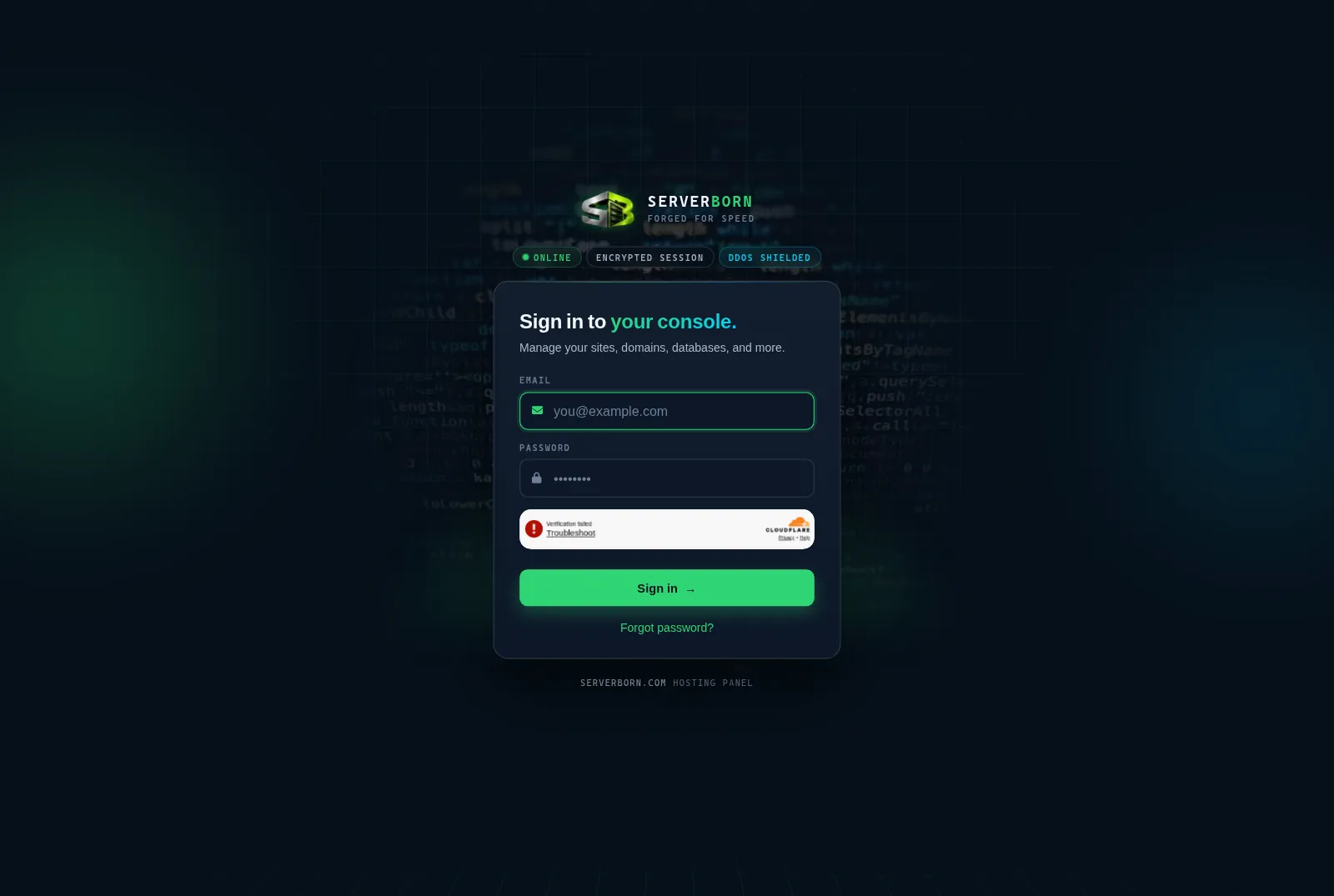
- Enter your email and password
Use the email you registered with. If you've forgotten the password, open a ticket from the ServerBorn contact page and we'll verify you manually: we never reset by email link alone.
- Complete the verification widget
The checkbox under the form confirms you're human. It usually passes automatically.
- Enter your 6-digit code (if 2FA is on)
Open Google Authenticator, Authy or 1Password and type the current code for ServerBorn. A backup code works too: each one is single-use.
Read the dashboard in one glance
The dashboard is a single pane of glass: the telemetry strip across the top answers “is everything OK?” in six lights before you scroll a pixel. Green means healthy, amber means look at this, red means act.

- Websites: how many sites you have live. Click to jump to your site cards.
- SSL: certificates are automatic on every domain; this should always read Active.
- Backups: the date of your most recent nightly snapshot.
- Support: open tickets waiting on you or on us.
- Billing: plan status; click for invoices and plan changes.
- Security: turns red until two-factor is enabled. Fix it: it takes two minutes.
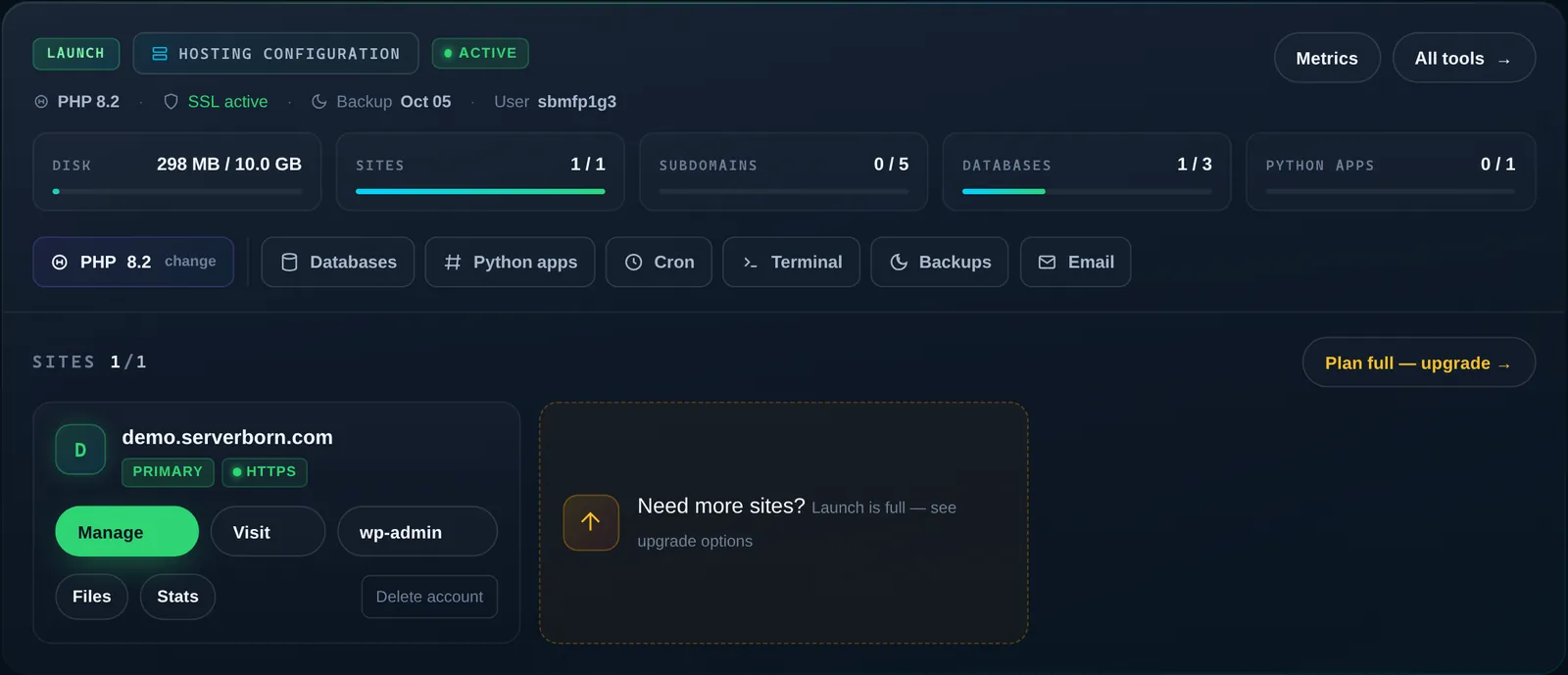
Below the strip, each hosting plan you own gets one big card: quota meters (disk, site slots, databases…), a quick-tool row, and one tile per website with Manage, Visit and wp-admin buttons.
Three ways to reach any tool
- The sidebar
On a computer, the left rail lists everything, grouped in plain language. Anything account-wide lives under Hosting; the geekier tools sit under Advanced. Type in the “Filter menu…” box to shrink the list.
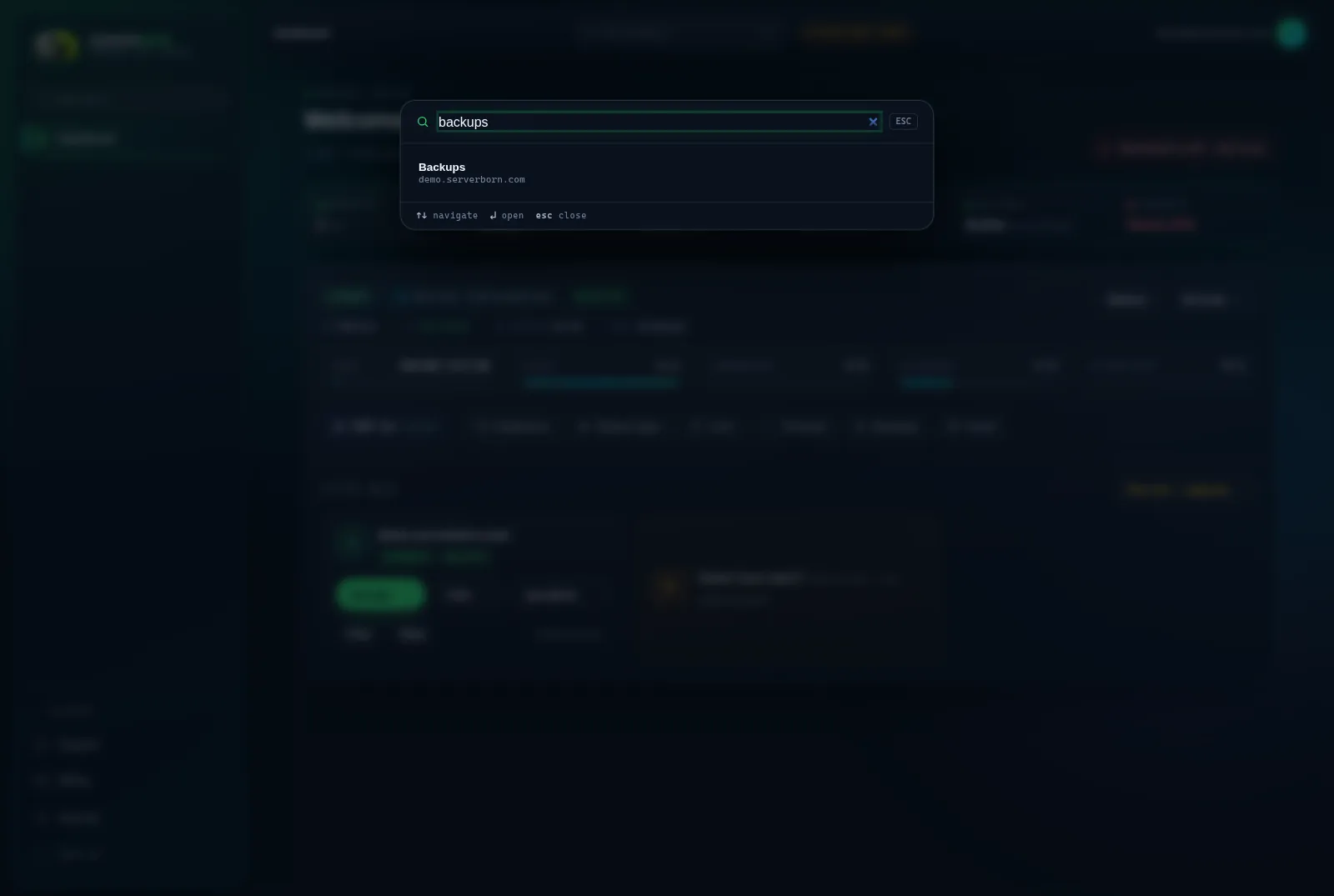
- Search: press
/From any page, press
/(orCtrl K) to open the command palette. Type a few letters: “back” finds Backups, “php” finds the PHP selector. Press Enter and you're there. It's the fastest way to move around. - The dock on your phone
On mobile, a floating bar sits at the bottom of every page: Home, Support, Search, Billing, and Menu (the full sidebar). Everything is reachable with a thumb.
Lock your account before anything else
If the Security light on your dashboard is red, do this now: open Security in the sidebar (or press / and type “sec”), then follow the two-factor guide. Hosting accounts are a favorite target: 2FA shuts almost all of it down.
Can I try the panel without an account?
Yes: the live demo at panel.serverborn.com/demo is the real panel pointed at a demo site. Everything renders; changes are blocked.
Does the panel work on phones?
Completely. It's designed mobile-first: the dock, drawer and search palette make every feature usable one-handed, and no page ever scrolls sideways.
I manage several hosting plans: how do I switch?
You don't need to switch context. The dashboard stacks one card per plan; every card carries its own tools and site tiles.