

What safe updates does
Updates keep WordPress secure, but an update can also break a page. Safe updates takes the guesswork out: one click finds every plugin, theme and WordPress core update that is waiting, tries them all on a private copy of your site, and shows you exactly what changed before anything touches the live site.
- Included on every plan, for every WordPress website.
- No guesswork and no AI: the report is made of real page loads, the server error log and pictures taken the way a visitor sees the site.
- Your live site is only changed when you press Update the live site, or by itself every night when the test passes (see Automatic updates), and it is saved right before, so one click puts it back.
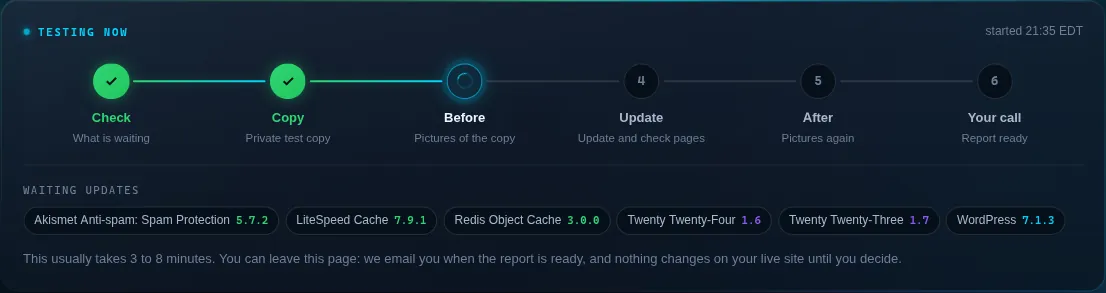
Automatic updates
Automatic updates are on for every WordPress website. Every night between 3 and 6 AM Eastern the panel checks the site for waiting updates and, when there are some, tests them on a private copy exactly like a manual test. What happens next depends on the verdict:
- Passed: the live site is saved, updated to the tested versions and checked again. You get an email with what changed and an Undo this update button.
- Worth a look or Would break your site: nothing changes. The report waits on the Safe updates page for your call, and the nightly check leaves it alone until you decide.
To switch it off for one website, open its Safe updates page and press Turn off next to Automatic updates. You can still test and apply updates by hand at any time. WordPress core is never updated by WordPress itself on ServerBorn: core updates always go through this tested path.
Run a test
- Open the website
Dashboard → Manage on the site, then the Safe updates tile (or Safe updates in the sidebar under This website).
- Press Test available updates
The panel checks for waiting updates. When there are none, it tells you the site is up to date and stops there.
- Let it run
A private copy of the site is made, pictured, updated, checked page by page and pictured again. This usually takes 3 to 8 minutes. You can leave the page: we email you when the report is ready.
Read the report
The top of the report gives the verdict:
- Passed: every page still works, with no new PHP errors and no new browser errors.
- Worth a look: the pages still load, but something changed. For example a new PHP warning, a new browser error, a page that now answers differently, or an update that did not install.
- Would break your site: a page broke on the copy, or PHP stopped with a fatal error. Your live site was not touched.
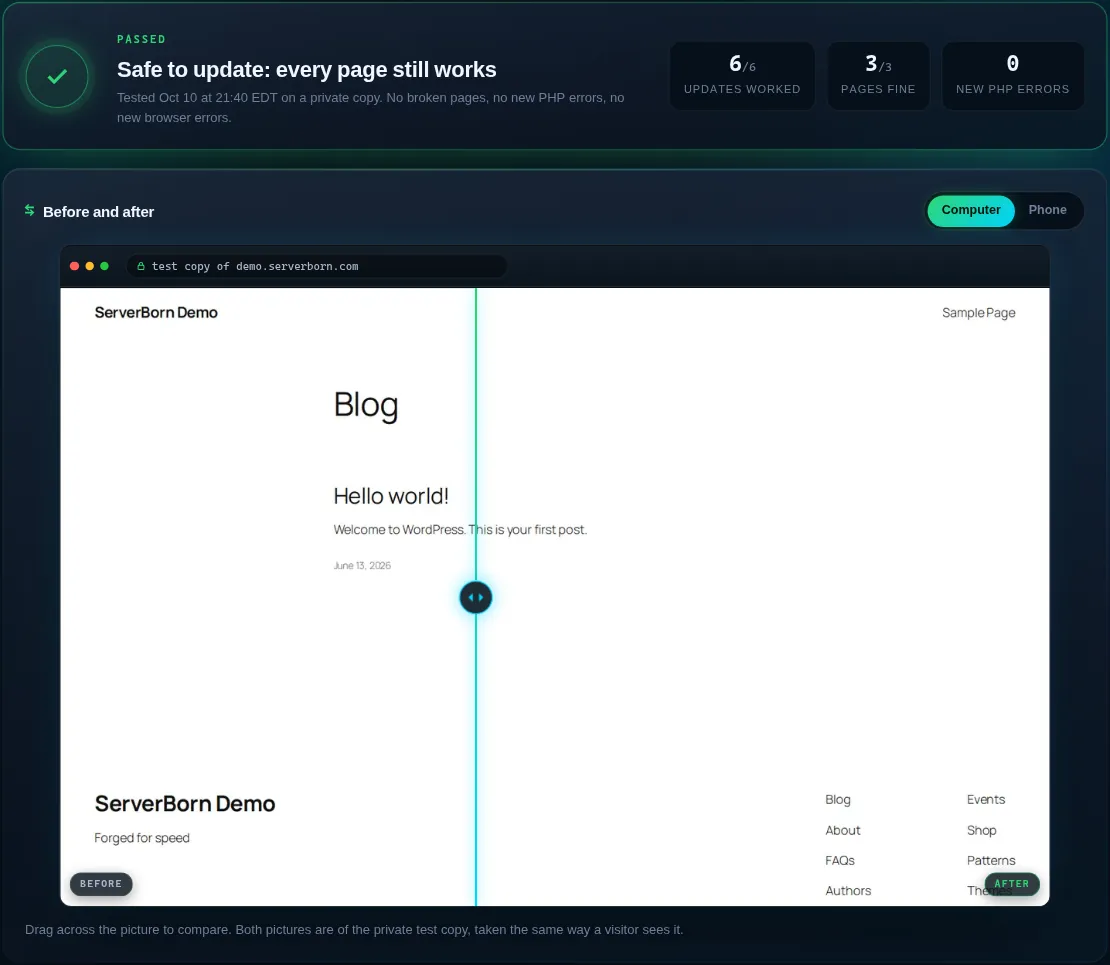
Drag across the Before and after picture to compare the copy before and after its updates, on a computer and on a phone. Below it, Updates lists every update with its old and new version, and Pages checked shows the answer of each page before and after.
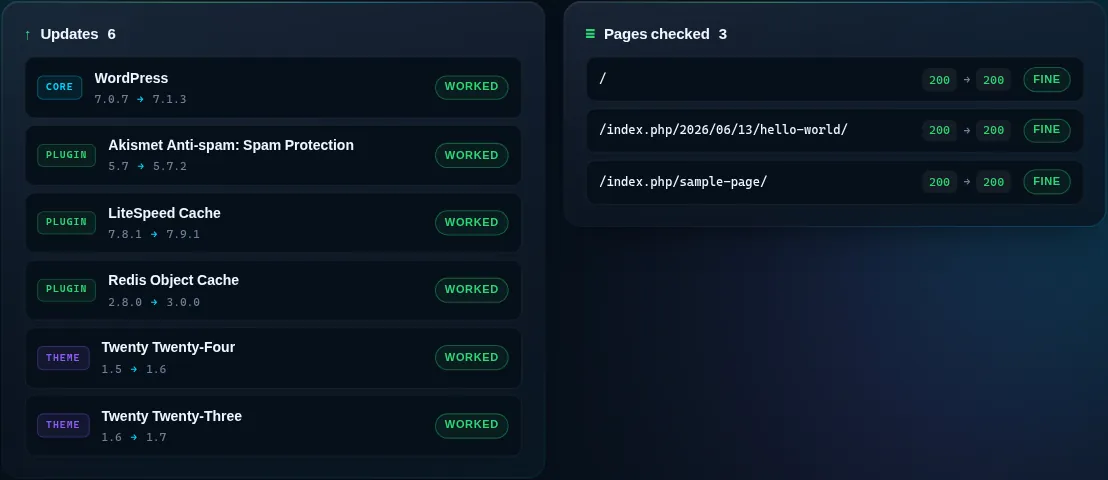
The pages checked are your home page, your most visited pages (when Analytics is on for the site) and your most recently changed pages and posts, up to eight in all. Errors that were already there before the updates are left out, so the error list only shows what the updates changed.
Update the live site
- Confirm
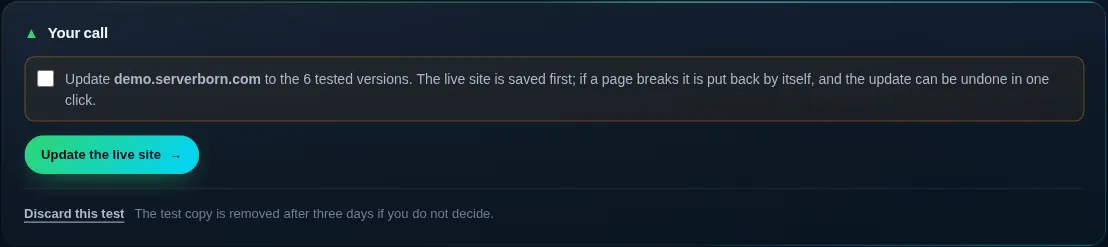
In Your call, tick the box and press Update the live site. Only the updates that worked on the copy are applied, at exactly the versions that were tested.
- The live site is saved first
Its files and its database are saved as an undo point, the same kind a staging push makes.
- Automatic put-back
After updating, the same pages are checked on the live site. If one breaks or PHP stops with a fatal error, the saved site is put back by itself and the report says what happened.
- Done
The edge cache is purged and fresh pictures of the live site are taken for the Manage page.
Undo puts back the files and the database as they were right before the update. Orders, comments, form entries or sign-ups that arrived on the live site after the update are lost when you undo, so check the site soon after updating.
Undo an update
Press Undo this update on the Safe updates page. Only the newest change to the live site can be undone from the panel: once you push staging or apply another update, the older undo point is removed and the button goes away. An update you undo is not applied again by automatic updates: when you want to try it again, press Test available updates yourself.
Discard a test
Discard this test removes the private copy, its files and its database tables. A test nobody decides on is removed by itself after three days, and starting a new test replaces the last one. Each website can run up to 12 tests a day.
Does safe updates cost extra?
No. It is included on every plan. The private copy uses your account's disk only while the test is open.
Does it use AI to judge my site?
No. The verdict comes from facts: the answer of each page, the WordPress error page, the PHP error log and the browser console, compared before and after.
Will my visitors notice the test?
No. The test runs on a private copy at its own random address that search engines are told to skip. The live site is not touched until you approve.
What about premium plugins?
If a premium plugin needs a license or its own download to update, the update can fail on the copy. It is marked Failed in the report and left out when you update the live site.
Can I test one change at a time?
Safe updates tests every waiting update together. For a single plugin, a theme switch or a redesign, use One-click staging.
Does it work for sites that are not WordPress?
No. Plugin, theme and core updates are a WordPress feature; other sites can use staging to test changes.