

What a staging copy is
A staging copy is a private twin of one of your websites at its own address, like stg-1a2b3c4d.serverborn.com. It has every file of the live site and, for WordPress, its own copy of the database. Changes you make there never touch the live site until you push them.
- Included on every plan: one staging copy per website. It does not count as a website on your plan.
- Hidden from search engines (a
noindexheader and WordPress's "discourage search engines" setting) and never cached at the edge, so you always see the latest version. - Same users and passwords as the live site.
Make a staging copy
- Open the website
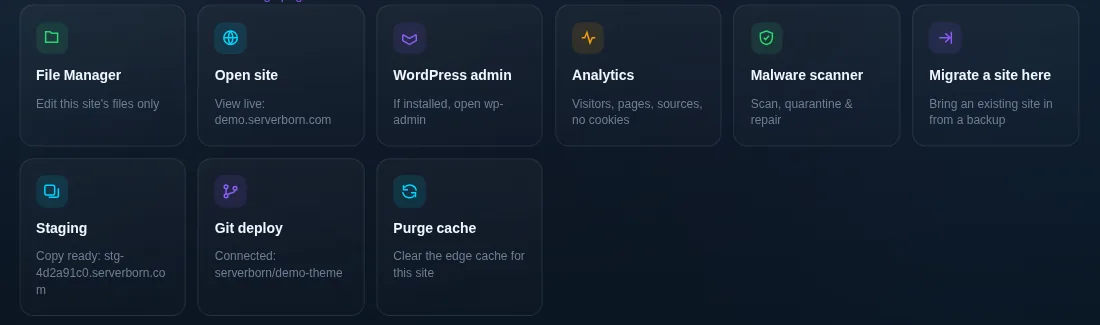
Dashboard → Manage on the site, then the Staging tile (or Staging in the sidebar under This website).
- Create the copy
Press Create staging copy, or choose a date under Or make the copy from a backup to start from the site as it was then. The panel copies the files and the database tables and points the copy at its new address. Most sites are ready in under two minutes; the page refreshes by itself.
- Open it
Use Open for the site, wp-admin for WordPress, or Files for the File Manager scoped to the copy.
Work on the copy
Do whatever you would not try on live: update plugins and themes, switch PHP-sensitive plugins, edit the theme, rebuild a page. The browser terminal and WP-CLI work on the copy too (its files live under sites/<number>/web).
Email still goes out from the copy. If you test contact forms or a shop, pause email-sending plugins on staging or use test addresses.
Push staging to live
- Choose what to push
On the Staging page pick Files, Database or both. Files covers themes, plugins and code. Database covers pages, posts, settings and users.
- Confirm
Tick the confirmation box and press Push to live. The live site is saved first: its files, and its database when you push the database.
- Check the live site
The edge cache for the live site is purged automatically, so visitors see the new version right away.
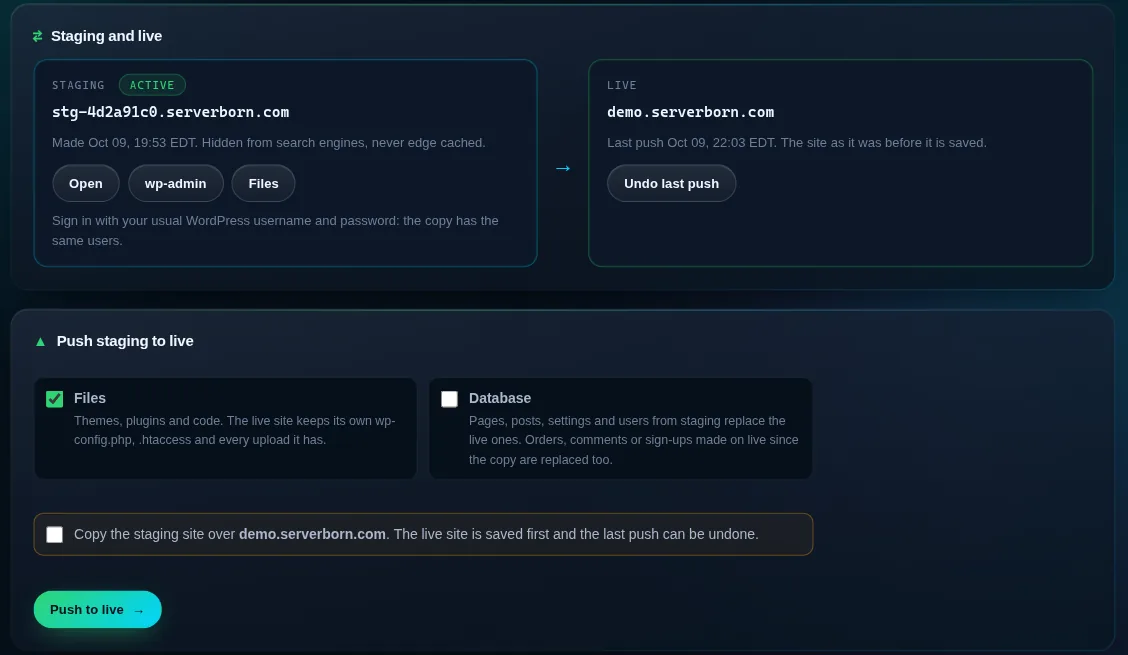
What a push never replaces on live: wp-config.php, .htaccess, .user.ini and the uploads that only exist on live. The live site's address and its search engine setting stay as they are.
A database push replaces the live content with the staging content. Orders, comments, form entries or sign-ups that arrived on the live site after you made the copy are replaced too. For a shop, push files only, or make a fresh copy right before the change.
Undo the last push
- Press Undo last push
On the Staging page, in the Live card. The live site goes back to exactly how it was before the last push: files, and the database if it was pushed.
- Done
The edge cache is purged again. The three most recent undo points are kept; only the newest push can be undone from the panel, support can help with older ones.
Delete or refresh the copy
Delete staging copy removes the copy's files, its database tables and its address. The live site is untouched. To start over from the current live site, delete the copy and create a new one.
Does staging cost extra?
No. Every plan includes one staging copy per website, and it does not use one of your website slots. It shares your account's disk.
Can search engines find my staging site?
No. The copy sends a noindex header to every crawler, WordPress is set to discourage search engines, and the address is random.
Does it work for sites that are not WordPress?
Yes. Static and PHP sites are copied and pushed the same way; there is just no database part.
What if a push fails half way?
The panel puts the saved live site back automatically and shows what went wrong. Nothing is left half pushed.
Can the panel test plugin updates for me?
Yes. Safe updates tries every waiting plugin, theme and WordPress update on a private copy and shows a before and after report before anything touches the live site.
Can I deploy to staging from GitHub?
Use Git deploy with previews instead: every branch you push gets its own preview site, built from a copy of your live site.