

Install WordPress
- Open the website's page
Dashboard → click Manage on the site's tile.
- Click Install WordPress →
In the WordPress panel. The installer runs in the background: a live status line appears below the button.
- Save the credentials card
When the install finishes (~30 seconds) a one-time card shows your admin URL, username and password with copy buttons. Store them in a password manager now.
- Click Open wp-admin →
You're in. The site is already live over HTTPS with LiteSpeed caching enabled.
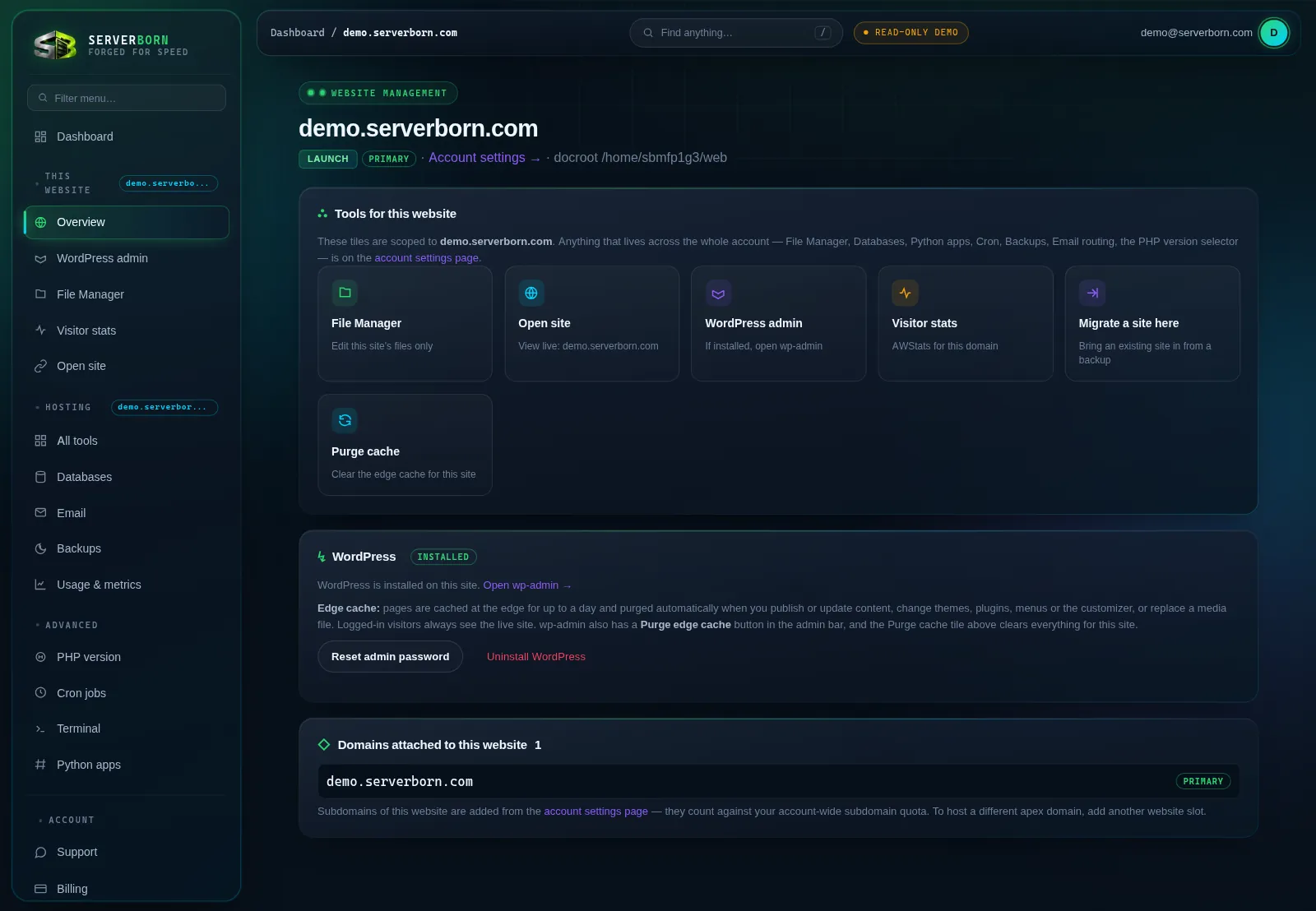
Come back later and the credentials card is still available on the same page: it's stored encrypted and only shown to you.
Log in to WordPress later
Three ways, pick your favorite: the wp-admin button on the site's dashboard tile, the WordPress admin link in the sidebar when you're on that site's page, or just visit yourdomain.com/wp-admin directly. If you turned on login protection (below), the panel's links take you to your private login address automatically, and straight to your dashboard if you're already signed in.
Hide your login page (login protection)
Every WordPress site gets a steady stream of bots trying passwords on wp-login.php. Login protection moves your login to a private address only you know. Anyone who isn't signed in and opens wp-login.php or /wp-admin/ just gets your site's normal "page not found" page.
- Open the site's manage page
Dashboard → Manage on the site's tile.
- Flick the Login protection switch on
We pick a random, hard-to-guess address like
yourdomain.com/enter-k2qqtwqr/. Want your own? Open Choose your own address first and type it in. - Save the new address
It's shown right under the switch with Copy and Open login buttons. Bookmark it and update the site address in your password manager.
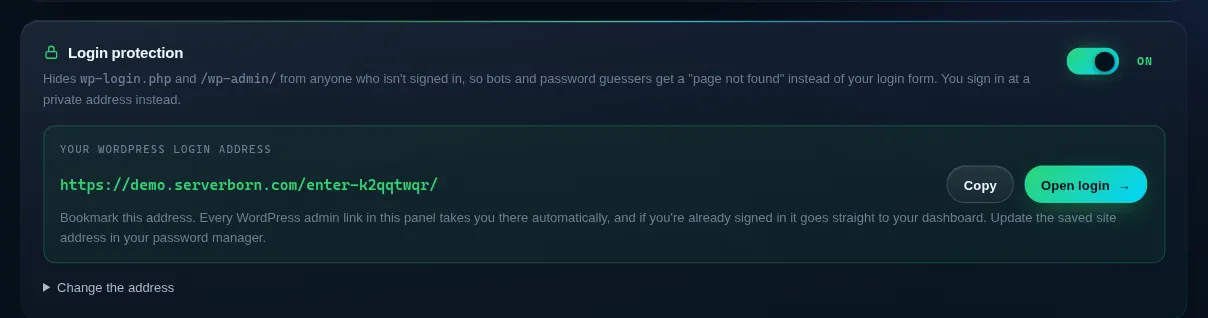
Forgot the address? It's always shown on the site's manage page in the panel, and every WordPress admin link in the panel uses it for you.
Change the address any time under Change the address on the same card: the old one stops working immediately. Turn it off with the same switch and the normal /wp-admin/ address works again. Contact forms, WooCommerce, cron and other plugins keep working either way, because only the login page and the admin area are hidden from visitors who aren't signed in.
Reset the admin password
- Open the site's manage page
Dashboard → Manage on the tile.
- Click Reset admin password
Confirm the prompt. Your old password stops working immediately.
- Copy the new password from the card
Same one-time card as the installer, with copy buttons.
Uninstall WordPress
- On the site's manage page, click Uninstall WordPress
Read the confirmation carefully.
- Confirm
WordPress tables are dropped and the site folder is cleared. The database itself stays (empty), and you can reinstall any time.
Uninstalling removes your posts, pages, themes and plugins for that site. Take a backup first if in doubt: restores are one click.
Can I bring an existing WordPress site here?
Yes: open a ticket and we'll migrate it for you, or install fresh and use a migration plugin like Duplicator/All-in-One WP Migration with the file manager.
Is caching set up for me?
Yes. LiteSpeed cache runs server-side out of the box, plus edge caching in front. Pages are purged automatically when you publish or change something; if you still see an old version, use Purge cache on the site's manage page. Details in Edge cache and purging.
Which PHP does WordPress use?
Your plan's PHP version: 8.2 by default. Change it any time under Advanced → PHP version.