
What the scanner checks
Every night the scanner checks every website on your plan, and you can run it yourself any time. It looks at your site from five angles, strongest first:
- Known malware. Every file is checked against the ClamAV signature database, which updates itself several times a day.
- WordPress checksums. WordPress core and every plugin from wordpress.org are compared byte for byte with the official releases. A changed core file is one of the clearest signs of a hack.
- Code patterns. PHP that can't be checked against an official copy (your theme, premium plugins, custom code) is scanned for the patterns webshells and backdoors use: obfuscation, command execution, hidden payloads.
- Red flags. PHP hiding in your uploads folder, files that disguise their type (
photo.jpg.php), and.htaccessrules that redirect search-engine visitors to other sites. - File changes. A fingerprint of every code file, so each scan can tell you what was added, changed or removed since the previous one.
Scans run at the lowest priority on the server, so your sites never slow down while one runs. A typical WordPress site takes under a minute.
Run a scan
- Open Malware scanner
Sidebar → Malware scanner, or the Security section on your account's All tools page. Press
/and type “malware” to jump there. - Click Scan now
The page shows a spinner and counts files as they are checked. You can leave the page; the scan keeps going.
- Read the result
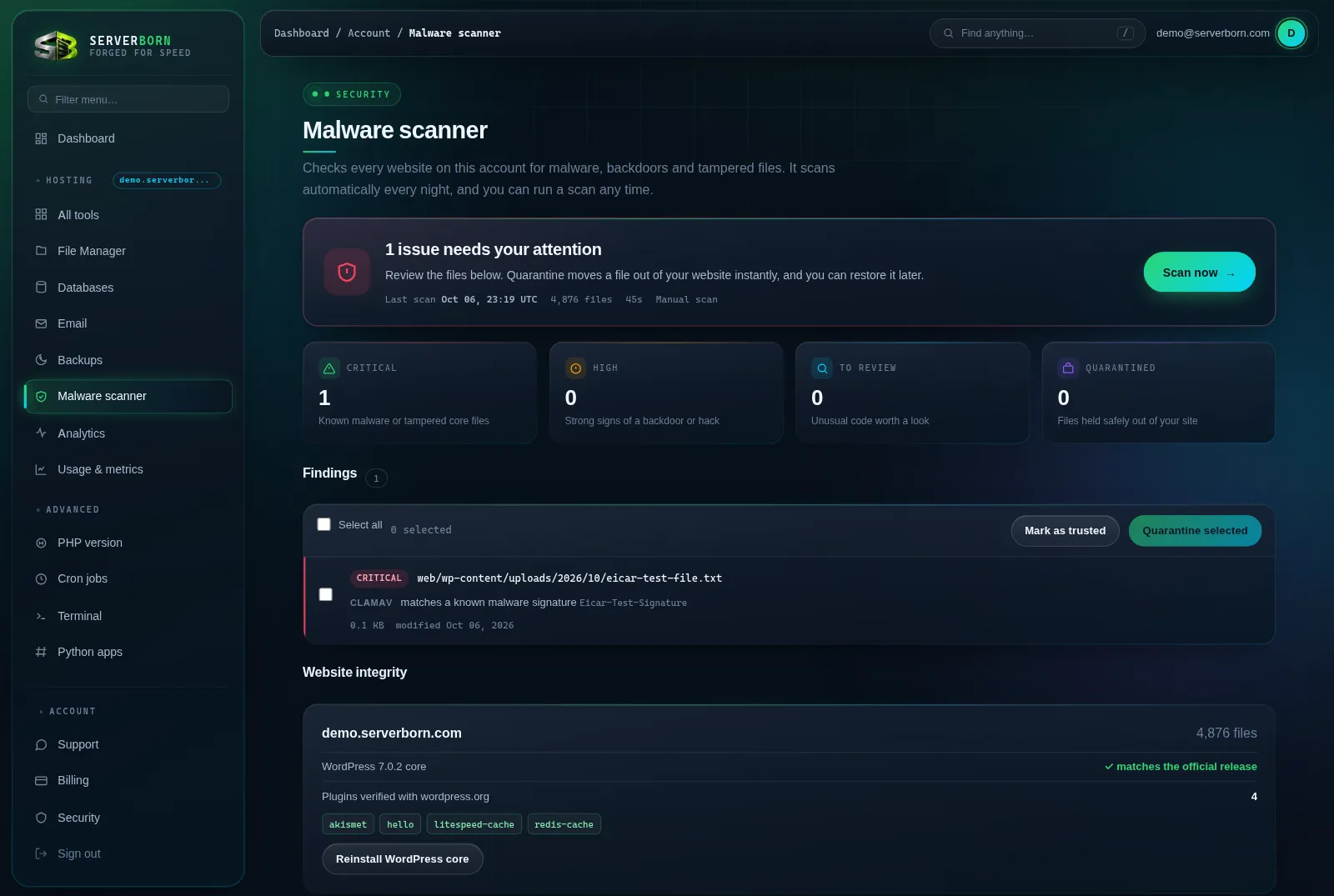
When it finishes the page refreshes by itself. A green All clear means nothing was found. Otherwise the big card tells you how many issues need attention.
Read the results
Each finding shows the file, how serious it is, and why it was flagged:
- Critical: known malware, or a WordPress core file that was modified. Act on these straight away.
- High: strong signs of a backdoor, such as PHP in your uploads folder or a hostile
.htaccessrule. - Review: unusual code in files that can't be checked against an official copy, like your theme or a premium plugin. Usually harmless (developers minify and protect their code too), but worth a look if you didn't expect it.
- Cleanup: leftover WordPress files with cut-off names from an interrupted install or update. WordPress never loads them; Repair WordPress core removes them.
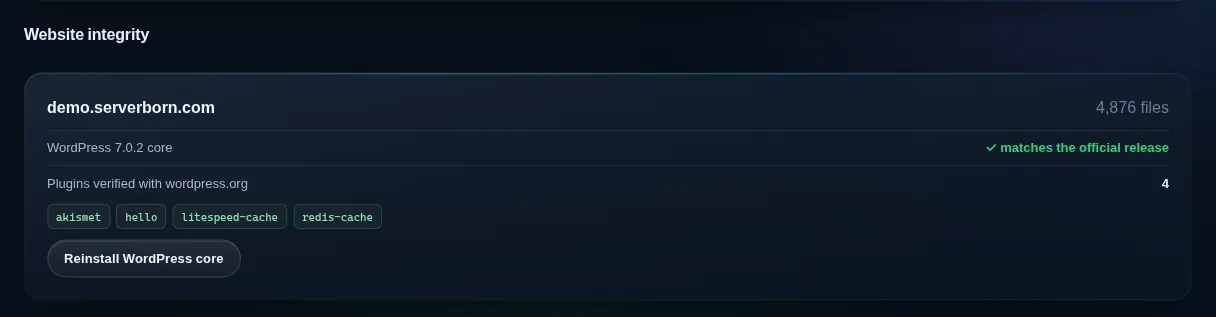
Under the findings, Website integrity shows each site's WordPress version, whether core matches the official release, and which plugins were verified with wordpress.org. Plugins listed as premium or custom can't be checksum-verified, so they get the code-pattern check instead.
Quarantine a file
- Tick the files
Use the checkbox on each finding, or Select all.
- Click Quarantine selected
Confirm, and the files are moved out of your website into secure storage that only the panel can reach. They stop working on your site immediately.
- Check your site
Open your website and click through a few pages. If something broke, the file was needed: restore it (below) and mark it as trusted.

Quarantine is pinned to the exact file the scan saw. If the file changed after the scan, quarantine refuses and asks you to scan again, so you never move the wrong thing.
Not sure if a file is safe? Quarantine it. Nothing is deleted, and Restore puts it back exactly where it was with its original permissions.
Restore or delete quarantined files
- Restore
Puts the file back at its original path. Only do this when you know the file is yours and safe; then use Mark as trusted after the next scan so it isn't reported again.
- Delete forever
Removes the quarantined copy permanently. This cannot be undone.
Mark a file as trusted
For Review findings that you recognise (your own theme code, a premium plugin you bought), tick them and click Mark as trusted. They move to the Trusted files list at the bottom of the page and stop being reported.
Trust is pinned to the file's exact contents. If a trusted file changes later, for example because malware was injected into it, it is reported again automatically.
Repair WordPress core or a plugin
If WordPress core files were modified, Repair WordPress core (on a finding, or under Website integrity) downloads a clean copy of the same WordPress version and replaces only the core files. Your themes, plugins, uploads, settings and database are not touched. Leftover cut-off files are moved to quarantine.
If a wordpress.org plugin file was changed, the finding shows Reinstall with the plugin's name: it reinstalls that plugin at the version you already run. Your plugin settings are kept (they live in the database).
A fresh scan starts automatically when a repair finishes.
Edited a plugin's files on purpose? Reinstalling replaces those edits. Copy your changes somewhere safe first, or keep them in a small custom plugin instead.
File changes since the last scan
The scanner keeps a fingerprint of every PHP, JavaScript, HTML and server config file. Each scan lists what was added, changed and removed since the previous one. Updates and your own edits show up here too, which is expected. A change you can't explain, especially a new PHP file, deserves a closer look.
The very first scan only records the fingerprint, so the list starts working from your second scan.
Automatic nightly scans and alerts
You don't need to remember anything: every website is scanned automatically every night. If a nightly scan finds a new critical or high issue, we email you with the file names and a link straight to the findings. You only hear about each issue once.
If your site was hacked
- Quarantine everything critical and high
That stops the malware from running right away.
- Repair WordPress core and reinstall flagged plugins
One click each on the scanner page.
- Change your passwords
Your WordPress admin password (Reset admin password on the website page), your database password, and your panel password.
- Update everything
Out-of-date plugins and themes are how most sites get hacked in the first place. Remove plugins you don't use.
- Scan again
Repeat until the scan is clear. If it keeps coming back, restore a backup from before the infection started and open a ticket: we'll help you find the way in.
Questions
Does scanning slow down my website?
No. Scans run at the lowest CPU and disk priority on the server, one at a time, with strict resource limits. Visitors won't notice.
Can the scanner delete my files by mistake?
It never deletes anything on its own. Files only move when you click Quarantine, and quarantined files can be restored with one click until you choose Delete forever.
Why is my theme listed under Review?
Themes and premium plugins have no official copy to compare against, so the scanner looks at their code patterns instead. Many legitimate products use minified or protected code that looks unusual. If you recognise the file, mark it as trusted.
How do I test that the scanner works?
Upload a file containing the standard EICAR antivirus test string to your site and run a scan. Every antivirus product treats it as a test virus, so it shows up as Critical. Quarantine it and delete it afterwards.
Do you scan my databases?
The scanner checks files. Injected content inside posts or options is rarer and usually comes from a compromised admin account; if you suspect that, open a ticket and we'll check the database with you.
Is this included in my plan?
Yes, on every plan, with no limit on manual scans.