

What you need from the old host
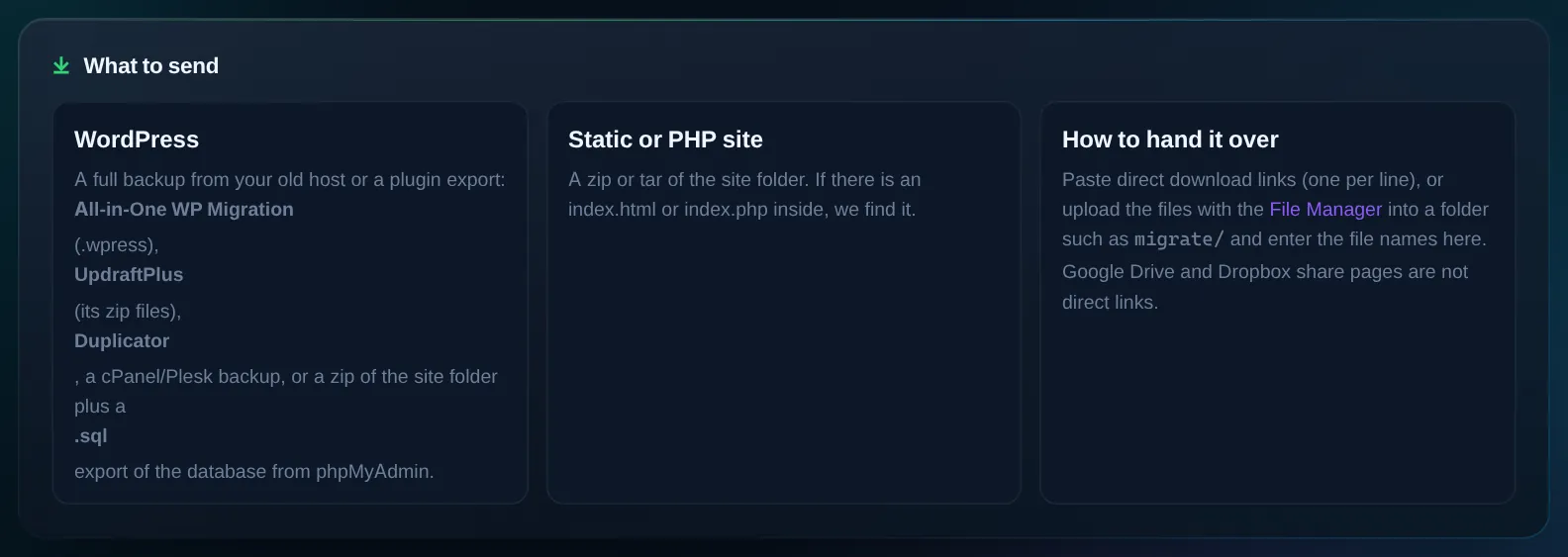
Two things: the site's files and, for WordPress, its database. Any of these formats works, and you can mix them:
- A zip, tar or tar.gz of the site folder (the one with
wp-config.phporindex.htmlin it). cPanel and Plesk "full backup" or "home directory" downloads are fine as they are. - An All-in-One WP Migration export (
.wpress). You do not need the paid import side of that plugin here. - UpdraftPlus backup files (the plugins, themes, uploads, others and db zips). Paste or upload all of them; the tool puts them back together and downloads a fresh WordPress core.
- Duplicator packages, or a plain copy of
wp-contentplus a database export. - The database on its own as
.sqlor.sql.gz(phpMyAdmin, Adminer,mysqldump, or your old host's backup page).
Up to 8 archives per migration, and the total can be as large as your plan's disk. Links must be direct downloads: a backup link from your old host's panel, a WeTransfer or Dropbox link ending in dl=1, or a file you uploaded with the File Manager. A Google Drive or Dropbox share page is a web page, not a file.
Export a WordPress site
- Easiest: All-in-One WP Migration
On the old site install the free All-in-One WP Migration plugin, open All-in-One WP Migration → Export, choose File, and download the
.wpressfile. It contains files and database together. - Or: UpdraftPlus
Install UpdraftPlus, click Backup Now with files and database ticked, then download every part from Existing backups. You will have a db file plus plugins, themes, uploads and others zips.
- Or: a plain copy
From the old host's file manager or FTP, zip the site folder (keep
wp-config.phpin it, the tool reads your table prefix from it). From phpMyAdmin pick the site's database and use Export → Quick. You get a.sqlfile.
Export a static or PHP site
Zip the folder that holds the site. If the archive has a single folder inside, or the index page sits a level down, the tool finds it. PHP files run as they did before; most .htaccess rules work, and the few that do not are handled for you (see below).
Run the migration
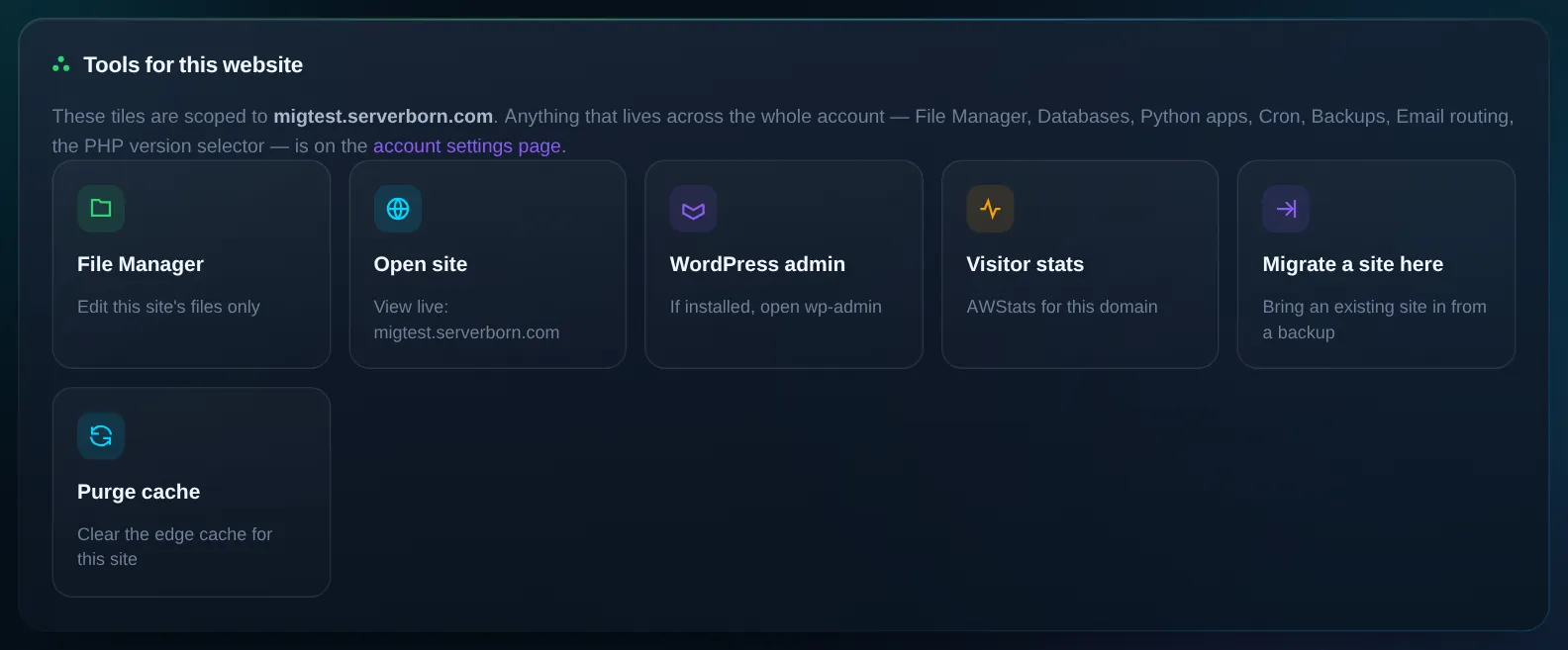
- Open the website's page
Dashboard → Manage on the site you want to migrate into → the Migrate a site here tile. The site you pick can be the account's primary website or any additional website slot.
- Hand over the files
Paste download links, one per line, or the names of files you uploaded with the File Manager (for example
migrate/site.zip). Add the database file in the second box only when it is not inside the archive.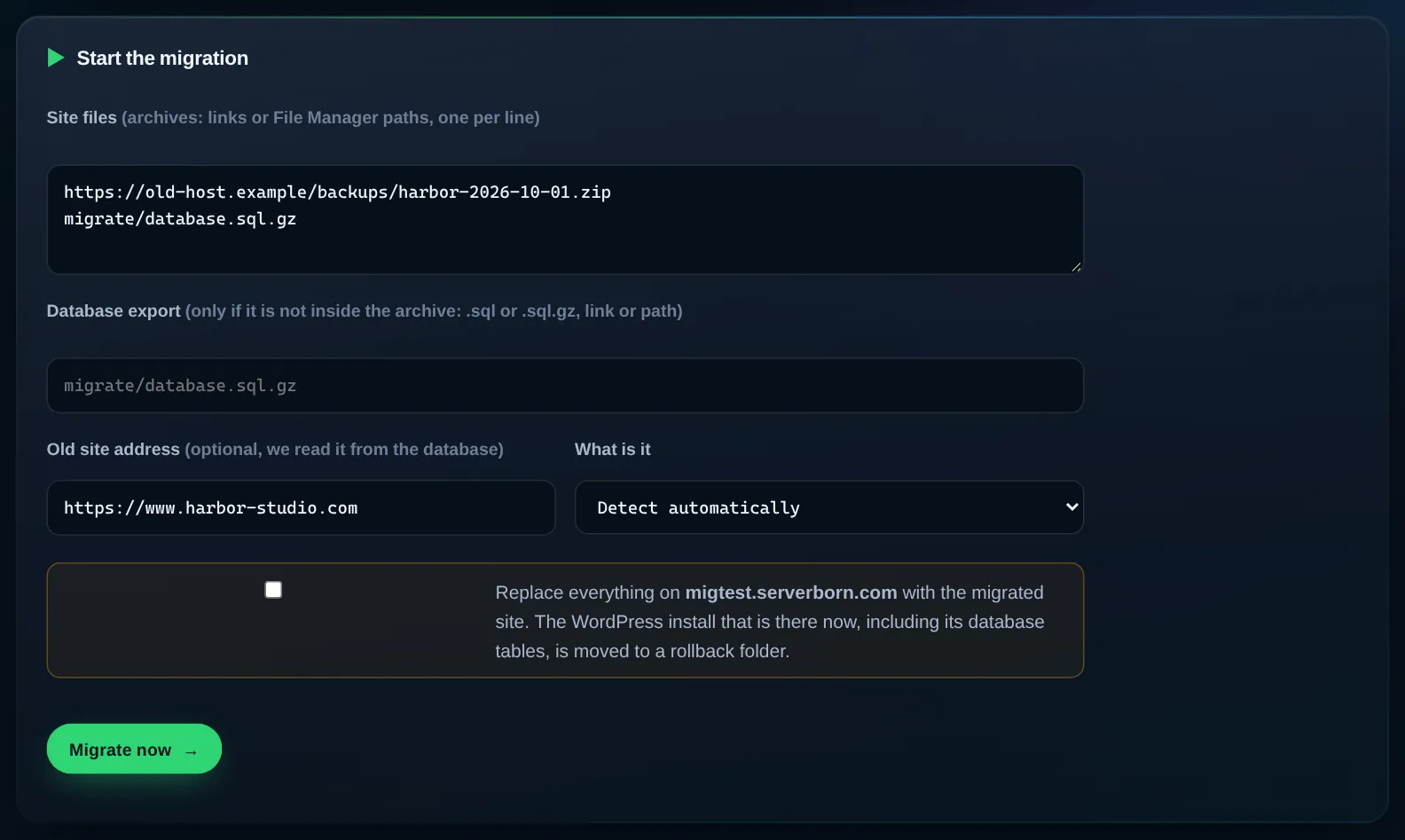
- Old address (optional)
The tool reads the site's previous address from the database. Fill it in only if the database belongs to a site with a different address than the one the backup came from.
- Confirm and start
Tick the confirmation (everything currently in that website slot is replaced; a copy is kept), then Migrate now. A small site is done in about a minute, large ones in a few. You can leave the page; the report is waiting on it when you come back.
- Read the report
Every step is listed, with a Worth a look box for anything you may want to check: a table prefix that was renamed, a caching plugin that was switched off, an
.htaccessthat had to be replaced.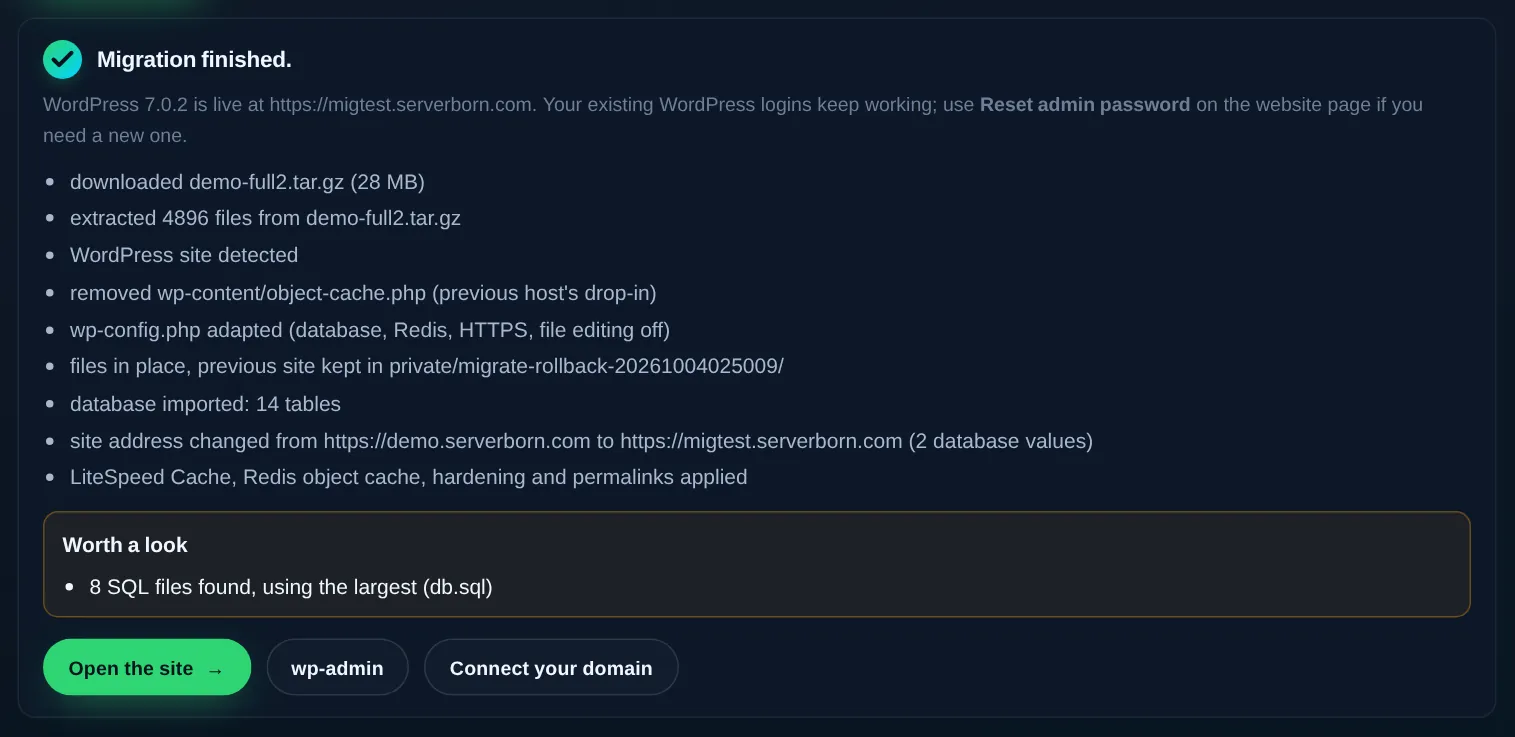
What the tool does for you
- Downloads or collects the archives and unpacks them safely (zip, tar, tar.gz, .wpress, .sql, .sql.gz).
- Finds the web root, the database dump and the table prefix on its own.
- Writes a
wp-config.phpfor your ServerBorn database, keeps your salts and custom constants, and removes the old host's database, cache and URL settings. - Imports the database with the usual fixes applied: MySQL 8 collations, DEFINER clauses, database-name statements and GTID lines that break on other servers, and All-in-One WP Migration prefix placeholders.
- Changes the site address everywhere in the database (serialised data included) to the new hostname.
- Removes the previous host's cache drop-ins and platform plugins, switches off caching plugins that clash with LiteSpeed Cache, and switches on LiteSpeed Cache, the Redis object cache, the ServerBorn edge cache and the hardening plugin.
- Downloads a fresh WordPress core when the export did not include it, and repairs core files that do not match their checksums.
- Checks that the site answers, and swaps in a standard
.htaccessif the old one causes an error (the original is kept as.htaccess.previous-host). - Keeps the previous contents of the slot, files and database, in a rollback folder so support can put it back.
After the migration
- Click through the site
Open it from the report and check a few pages, the menu, a form, the media library. Your WordPress users and passwords are unchanged. If you forgot the admin password, Reset admin password on the website page gives you a new one.
- Log in to wp-admin once
WordPress finishes any database update on the first admin visit. If you see a "database update required" screen, click through it.
Move your domain
The site now lives on the address you migrated into, usually your something.serverborn.com name. When you are happy with it, add the real domain under Domains and change its nameservers at your registrar, as explained in Connect a domain you own. Then run the migration tool once more with the domain as the target, or ask support to switch the address; the links inside the site must point at the final name. Keep the old host for a few days in case anything was missed.
If something is off
- "download failed" or "the link returned a web page": the link was not a direct download. Upload the file with the File Manager instead and enter its path.
- "no database dump found": the archive had only files. Export the database from phpMyAdmin and add it in the database box.
- White page or "critical error" after the migration: a plugin or theme is not compatible with PHP 8.2. Switch the PHP version from the account page, or deactivate the plugin from wp-admin.
- Old links in the content: the previous address is usually detected; run the tool again with the old address filled in if some links still point at the old domain.
- Mixed content or a redirect loop: that was the old host's forced-SSL setting; the tool removes it, and clearing your browser cache fixes the rest.
- Anything else: open a ticket with the report's text. Support can see every step, restore the rollback folder, or finish the migration with you.
Does it cost anything?
No. The tool is included on every plan, and support helps with migrations at no charge.
Can I migrate into a site that already has WordPress on it?
Yes. Whatever is in that website slot is moved to a rollback folder, files and database tables alike, and the migrated site takes its place.
My old site uses the table prefix wp_ and so does my other site here. Is that a problem?
No. Additional websites on the same account share one database, so a clashing prefix is renamed automatically (the report tells you which one was used). Your logins and roles are updated along with it.
How big can the site be?
As big as your plan's disk. Downloads and the unpacked files are checked against it, and the tool stops early rather than filling the account.
Can support run it for me?
Yes. Open a ticket with the download links; after you confirm the target site, a support engineer starts the same migration and sends you the report.